Guide
Ready to try your Chinese keyboard?
Start with a short HSK 1 typing session. No signup is required.
Practice HSK 1 vocabularyWindows 11 can type Traditional Chinese with Hanyu Pinyin, but the setting is not where most people expect it. Do not use Microsoft Pinyin, which belongs to the Simplified Chinese language pack. Instead, install Microsoft Bopomofo for Traditional Chinese and change its keyboard layout to HanYu Pinyin.
The result is a Traditional Chinese keyboard that accepts familiar Pinyin input. You can type zhuyin and convert it to 注音 without learning the physical Bopomofo layout first.
Microsoft documents HanYu Pinyin as one of the supported layouts in its Traditional Chinese IME reference.
Press Win + I to open Settings, then go to:
Time & language -> Language & region -> Add a language
Search for Chinese and choose Chinese (Traditional, Taiwan). This matters because the Taiwan language pack provides Microsoft Bopomofo, Microsoft Changjie, and Microsoft Quick. The Simplified China language pack provides Microsoft Pinyin and Microsoft Wubi instead.
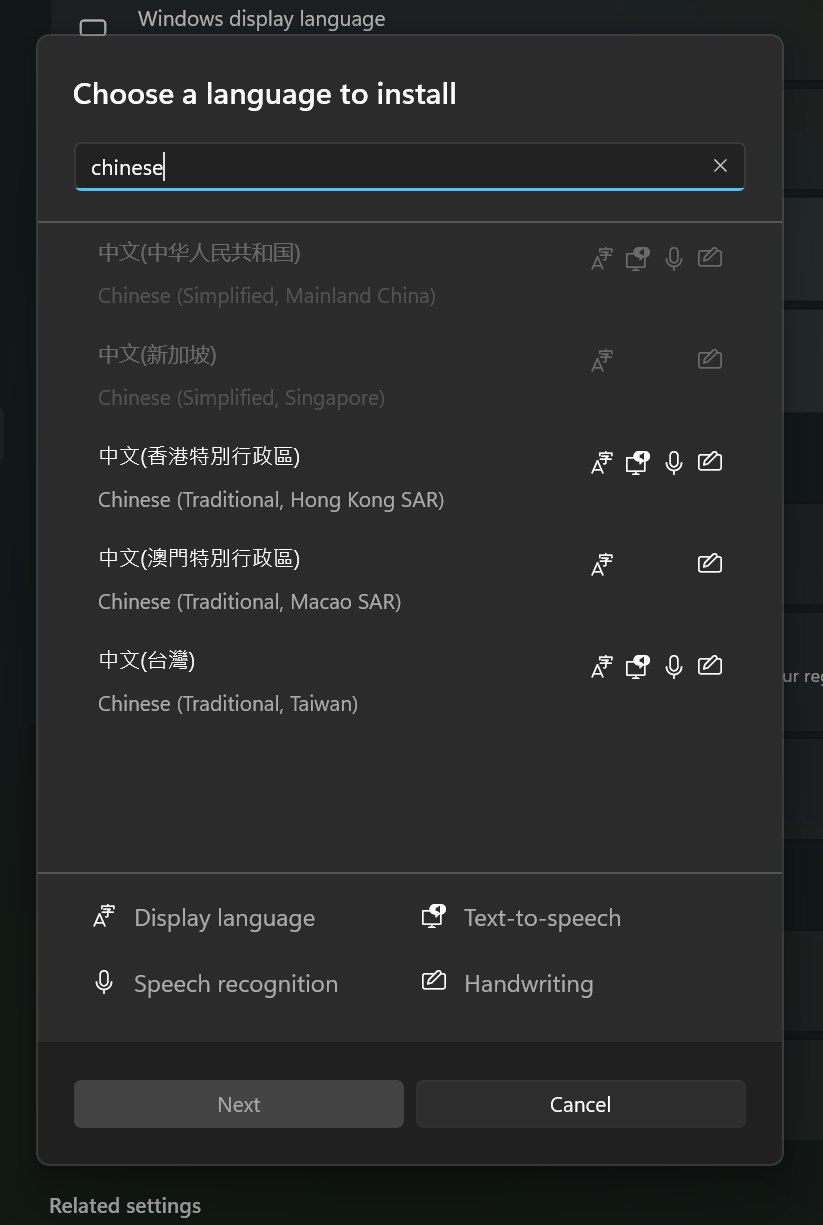
After installation, open the ... menu beside Chinese (Traditional, Taiwan), choose Language options, and confirm that Microsoft Bopomofo appears under Keyboards.
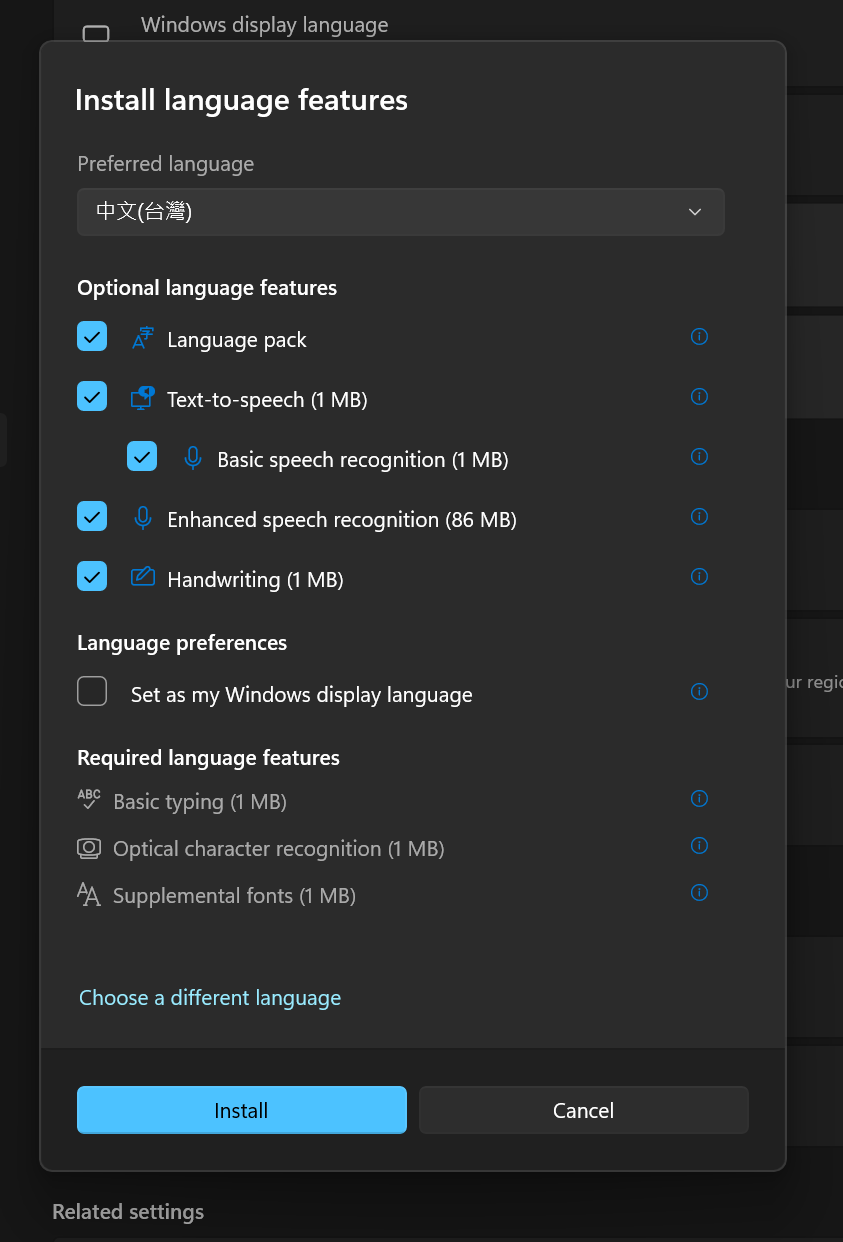
If it is missing, select Add a keyboard -> Microsoft Bopomofo.
Microsoft Bopomofo uses the Standard Zhuyin layout by default. To type with romanized Pinyin instead:
Do not choose Taiwan Pinyin unless you specifically use Taiwan's romanization conventions. HanYu Pinyin uses familiar spellings such as zh, ch, and sh; Taiwan Pinyin may use spellings such as jh instead.
Use Win + Space to switch to Microsoft Bopomofo. Make sure the IME is in Chinese mode, then use one of these input patterns:
Type the Pinyin followed by a tone number. Microsoft uses number keys 1 through 5 for the four tones and neutral tone.
For example:
zhu4yin1 -> 注音ni3hao3 -> 你好xue2xi2 -> 學習The Traditional Chinese candidate window appears after you enter the syllables. Select the intended word with Enter, Space, or its candidate number.
You can also type Pinyin without tone numbers, then press Enter or Space to convert it. This is convenient for casual typing, although tones can narrow the candidate list when several readings match.
Microsoft also supports a space after a Pinyin syllable as a tone wildcard. This is useful when you know the pronunciation but are unsure of the tone.
The names are confusing because both accept Hanyu Pinyin, but they belong to different Windows language packs.
| Windows input option | Language pack | Normal output | Best for |
|---|---|---|---|
| Microsoft Pinyin | Chinese (Simplified, China) | Simplified Chinese | Mainland China and Simplified typing |
| Microsoft Bopomofo with HanYu Pinyin | Chinese (Traditional, Taiwan) | Traditional Chinese | Traditional characters typed with Pinyin |
If your keyboard keeps producing 学 when you need 學, check which input method is active. Microsoft Pinyin and Microsoft Bopomofo with HanYu Pinyin are not the same configuration.
| Shortcut | Action |
|---|---|
| Win + Space | Switch between installed languages and keyboards |
| Shift | Switch between Chinese and English mode inside the IME |
| Number key | Select the corresponding candidate |
| Enter | Select the focused candidate |
| Tab or Right arrow | Expand the candidate window to table view |
Microsoft lists these controls and additional symbol shortcuts in its Traditional Chinese IME documentation.
Microsoft Bopomofo is still using the Standard layout. Return to Keyboard options -> Key assignment and choose HanYu Pinyin.
You probably switched to Microsoft Pinyin under Chinese (Simplified, China). Use Win + Space and choose Microsoft Bopomofo under Chinese (Traditional, Taiwan).
Confirm that Chinese (Traditional, Taiwan) is installed. Open its Language options and use Add a keyboard if Microsoft Bopomofo is not listed.
Press Shift once to make sure the IME is in Chinese mode. Also verify that the taskbar input indicator shows the Traditional Chinese input method rather than English.
Check that you chose HanYu Pinyin, not Taiwan Pinyin. Add tone numbers when you want to narrow ambiguous candidates, and type complete words instead of converting every character separately.
HanYu Pinyin is a good choice if you already learned Mandarin through romanized Pinyin but need Traditional output. Standard Bopomofo may be a better long-term choice if you studied in Taiwan, already know ㄅㄆㄇㄈ, or regularly type for a Taiwan audience.
Compare the methods in the practical Zhuyin keyboard-layout guide. For the complete Windows setup across Pinyin, Bopomofo, Cangjie, Quick, and Wubi, see the Windows Chinese keyboard guide.
For setup instructions across Windows, macOS, iPhone, and Android, open the cross-device Traditional Chinese Pinyin guide.
Once the keyboard works, use it on real text so candidate selection becomes automatic. Start with HSK 1 Traditional Chinese vocabulary and Pinyin hints.
Focus on accuracy first. Type full words, check that the output uses Traditional characters, and gradually reduce how often you pause at the candidate window.