Guide
Ready to try your Chinese keyboard?
Start with a short HSK 1 typing session. No signup is required.
Practice HSK 1 vocabularyWindows 11 includes Chinese input methods by default. You do not need to download a separate keyboard app to type Chinese.
The current Windows path is Settings -> Time & language -> Language & region. Microsoft documents the same language and keyboard flow in its Windows keyboard layout guide.
The important choice is which Chinese keyboard to add. Most Mandarin learners should choose Microsoft Pinyin. Taiwan users often choose Microsoft Bopomofo. Hong Kong and Traditional shape-based users may prefer Microsoft Changjie or Microsoft Quick. Simplified shape-based users may choose Microsoft Wubi.
| If you are... | Choose this input method | Best script |
|---|---|---|
| Learning Mandarin or starting from scratch | Microsoft Pinyin | Simplified or Traditional |
| Typing for mainland China or Singapore | Microsoft Pinyin | Simplified |
| Typing for Taiwan | Microsoft Bopomofo | Traditional |
| Typing for Hong Kong | Microsoft Changjie or Microsoft Quick | Traditional |
| Learning shape-based Simplified input | Microsoft Wubi | Simplified |
| Looking up characters you cannot pronounce | Handwriting, stroke/component lookup, or a shape-based method | Depends on your language pack |
For most beginners, choose Microsoft Pinyin. It is the easiest path if you know Mandarin pronunciation. Choose Bopomofo, Changjie, Quick, or Wubi only if those match how you learned Chinese or what your region/workplace expects.
TypeChinese works with whatever Windows input method you set up. The site can show Pinyin, Zhuyin, or Cangjie hints during practice, so you can match the practice hints to the input method you are learning.
Common choices:
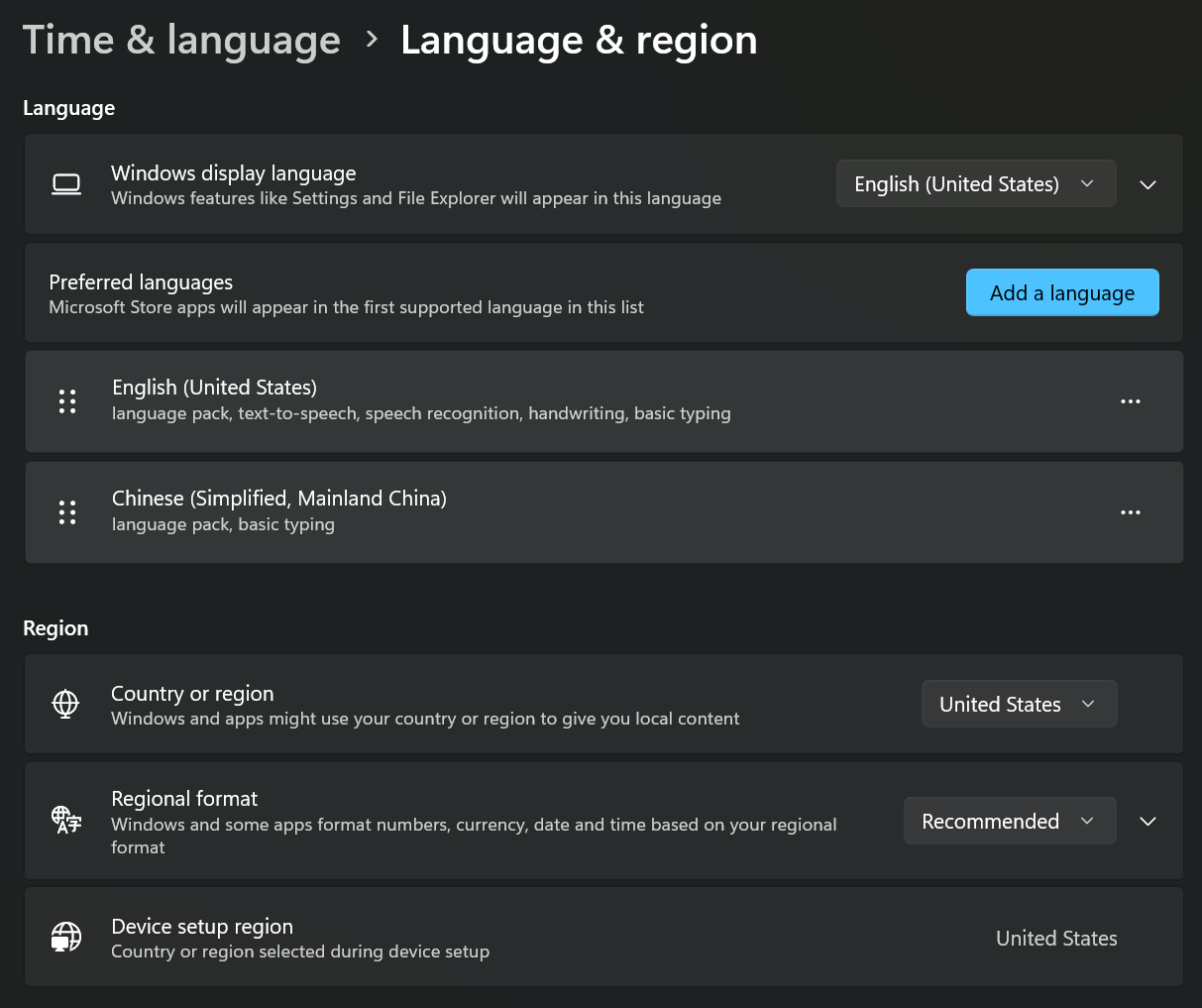
Start in Language & region, then add Chinese as one of your preferred languages.
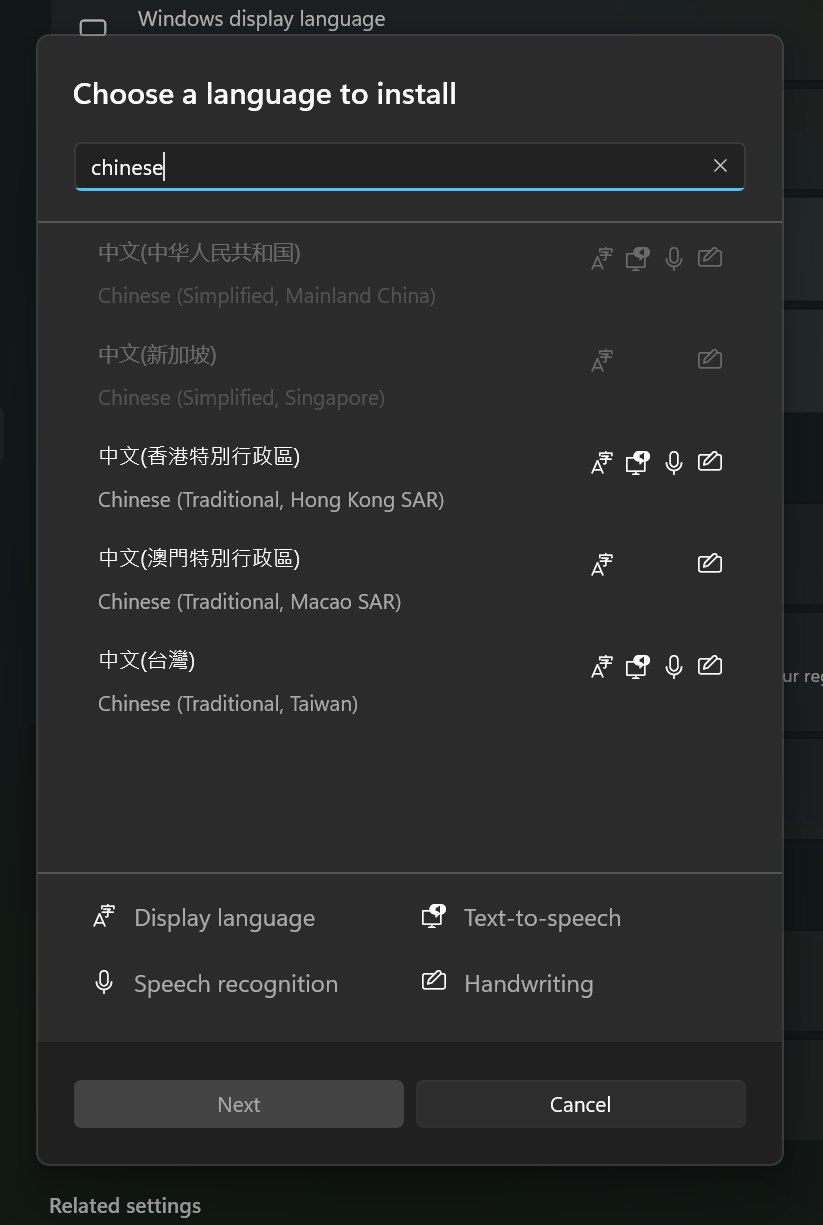
Search for Chinese or 中文 and choose the language package that matches the script and region you need.
Click Next, choose the language features you want, then click Install. Windows may take a minute or two to install the language pack and keyboard.
After the language is installed:
For Simplified Chinese, look for:
For Traditional Chinese, look for:
To open settings for a specific input method, use the ... menu next to that keyboard and choose Keyboard options.
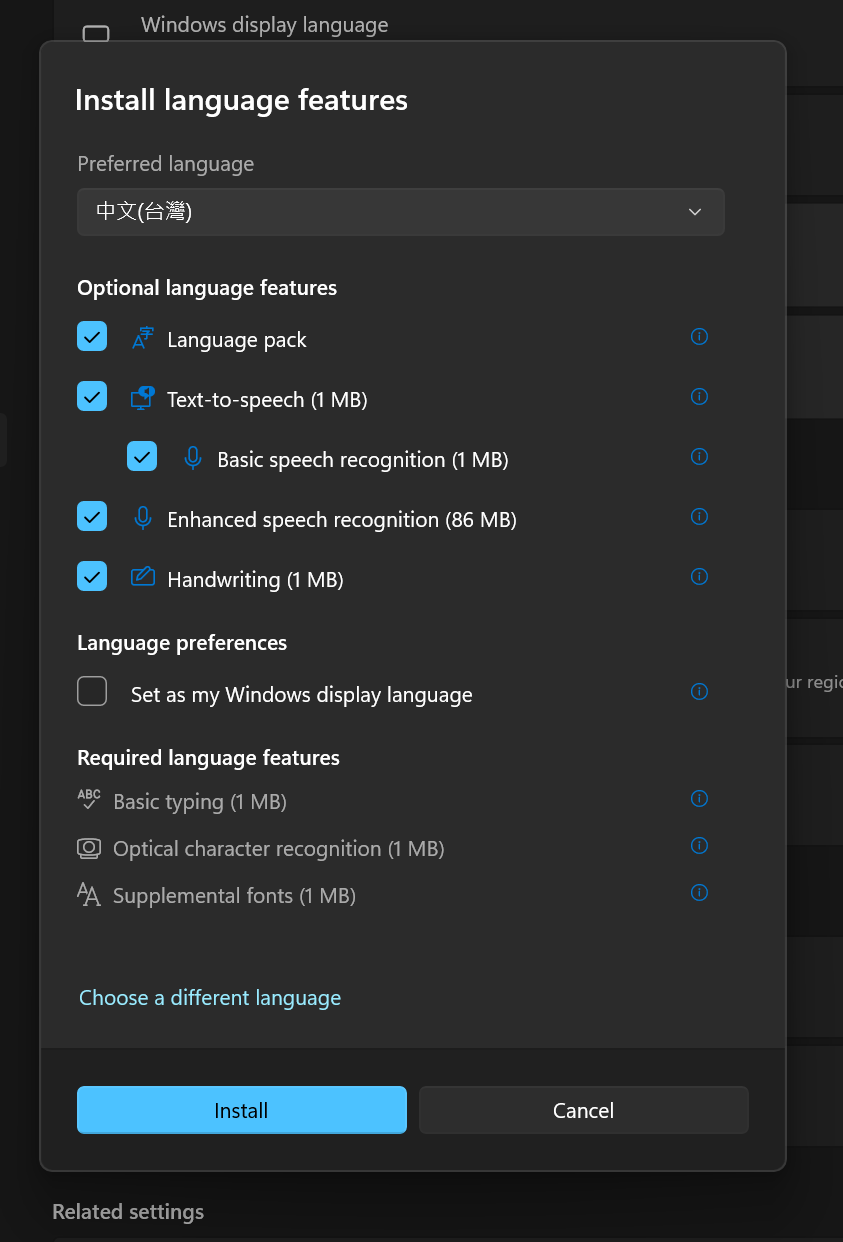
Use Language options to manage Chinese keyboards such as Microsoft Pinyin, Wubi, Bopomofo, Changjie, or Quick.
Once Chinese input is installed, you can switch between English and Chinese with:
When Chinese input is active, the taskbar indicator should show the Chinese input method or a Chinese-mode indicator.
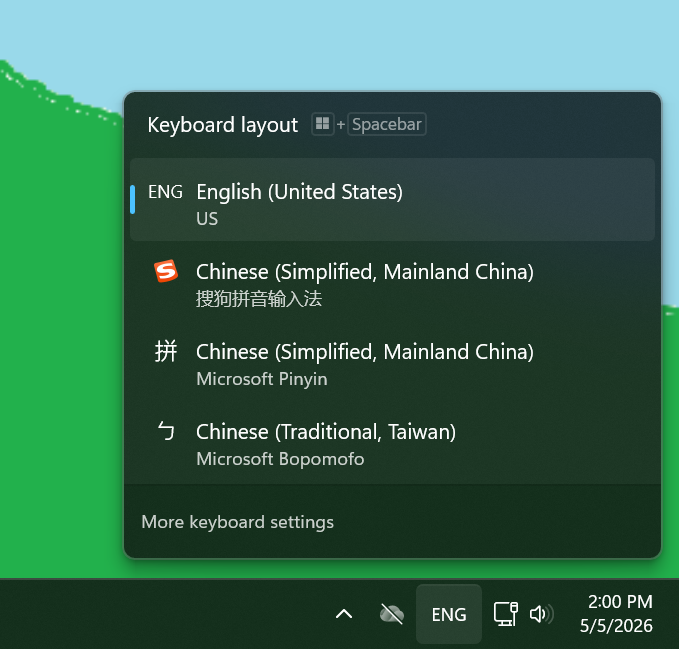
Win + Space opens the input switcher so you can move between English and Chinese keyboards.
nihao.Useful Microsoft Pinyin settings:
You can ignore these at first. Start by typing full Pinyin for words and phrases.
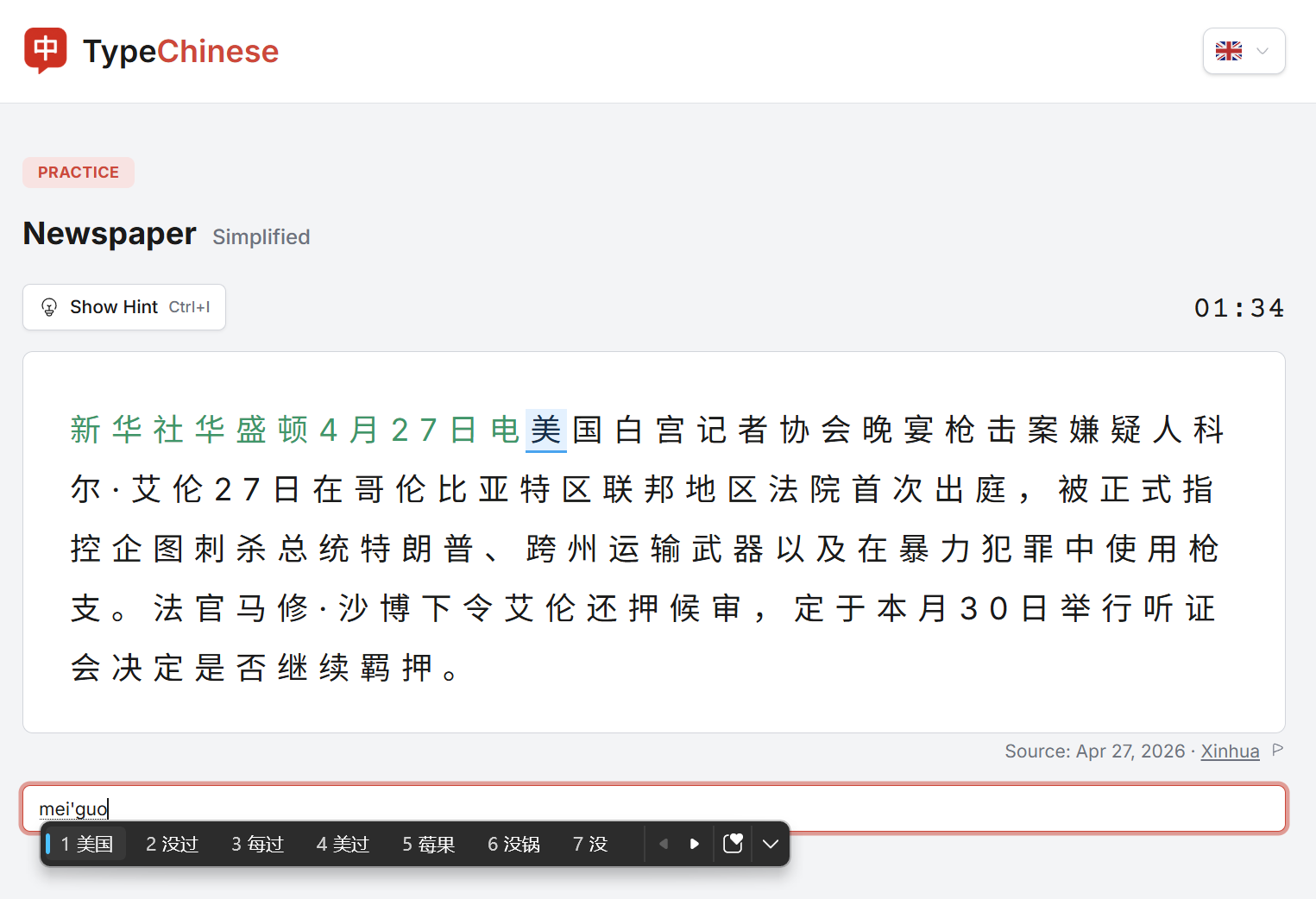
With Pinyin, type the pronunciation first, then choose the intended Chinese characters from the candidate window.
Use Microsoft Bopomofo if you learned Zhuyin/ㄅㄆㄇㄈ or are typing for Taiwan.
The basic flow is:
This is the most region-appropriate default for many Traditional Chinese users in Taiwan.
For the full Standard layout, settings, shortcuts, and fixes, read the Microsoft Bopomofo on Windows 11 guide.
Windows places its Traditional Chinese Pinyin layout inside Microsoft Bopomofo rather than listing a separate "Traditional Pinyin" keyboard.
For example, Microsoft says you can type zhu4yin1 to produce 注音. You can also type Pinyin without tones and press Space or Enter to convert it. See Microsoft's Traditional Chinese IME reference for the current layouts and shortcuts.
For a focused walkthrough, see How to Type Traditional Chinese with Pinyin on Windows 11.
Use Microsoft Changjie if you want full Cangjie/倉頡 input for Traditional Chinese. Use Microsoft Quick if you want a simpler Cangjie-like method with fewer codes and more candidate selection.
These are shape-based input methods. Instead of typing pronunciation, you type codes based on character components. They are especially relevant for Hong Kong users and people who often need to type characters they may not know how to pronounce.
Use Microsoft Wubi if you specifically want a shape-based input method for Simplified Chinese. It can be fast for experienced typists, but it has a steeper learning curve than Pinyin and is not the best first choice for most beginners.
Once Chinese typing works in Windows, practice with real text. Do not stop after typing nihao once. Chinese input gets faster when you build rhythm with full sentences.
TypeChinese works in your browser with the Windows input method you just set up. If you are practicing Pinyin, Zhuyin, or Cangjie, TypeChinese can show matching hints above each character while you type.
Recommended starting points:
Start with accuracy, not speed. Once switching keyboards and selecting candidates feels automatic, your typing speed will start to climb.