Guide
Ready to try your Chinese keyboard?
Start with a short HSK 1 typing session. No signup is required.
Practice HSK 1 vocabularyMicrosoft Bopomofo is Windows 11's built-in Zhuyin input method for Traditional Chinese. It is the most direct Windows choice if you type ㄅㄆㄇㄈ, learned Mandarin in Taiwan, or want Taiwan-style Traditional Chinese input.
You do not need to download a third-party keyboard. Install Chinese (Traditional, Taiwan), add Microsoft Bopomofo, then type complete Zhuyin syllables and tones before selecting Chinese candidates.
Microsoft's Traditional Chinese IME reference documents the current Windows 11 settings, layouts, candidate controls, and shortcuts.
Once the keyboard is installed, use the practical Zhuyin keyboard layout guide for the complete key map, tone-key positions, typing examples, and practice exercises.
Press Win + I, then follow this path:
Time & language -> Language & region -> Add a language
Search for Chinese and select Chinese (Traditional, Taiwan). After Windows installs it:
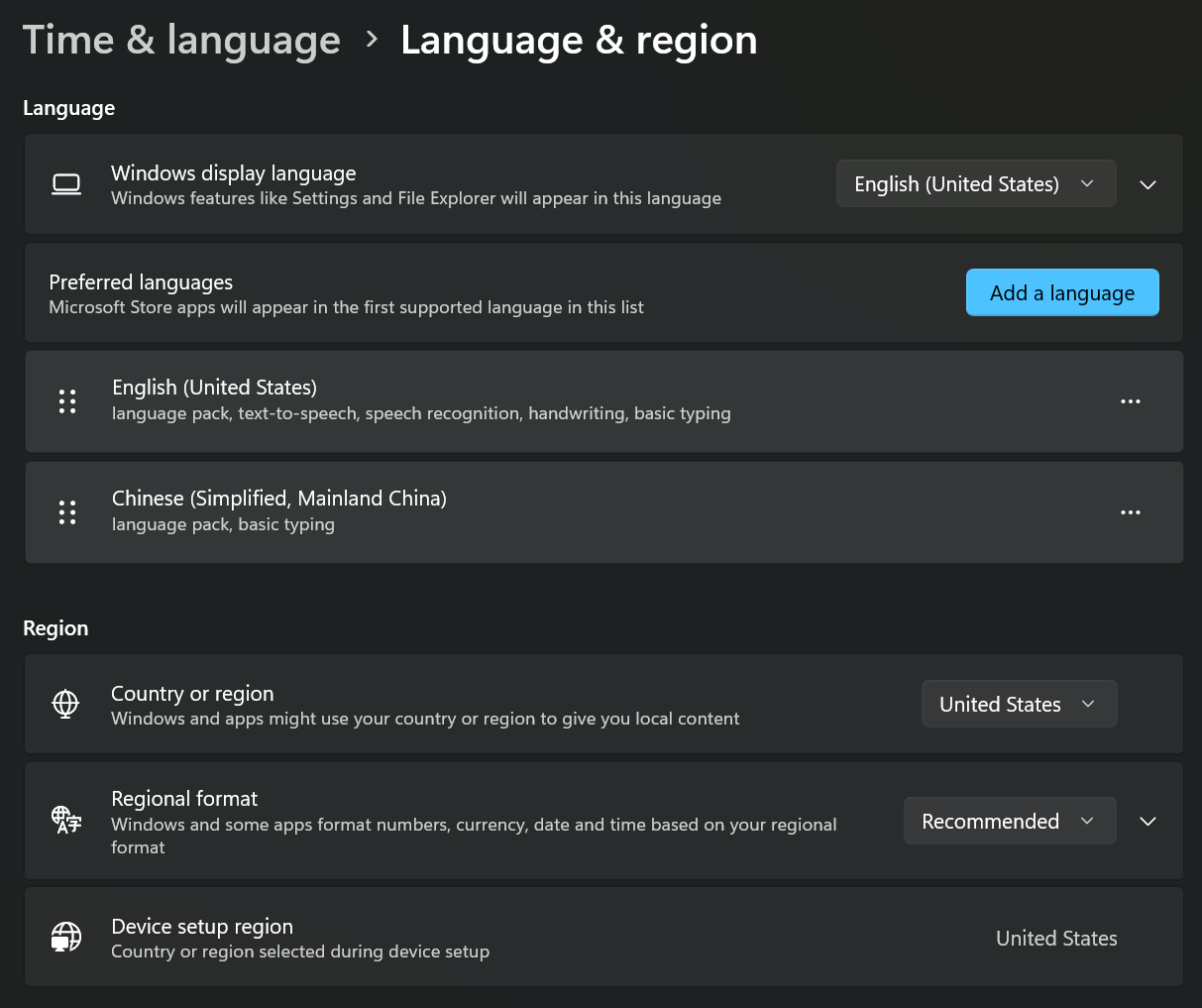
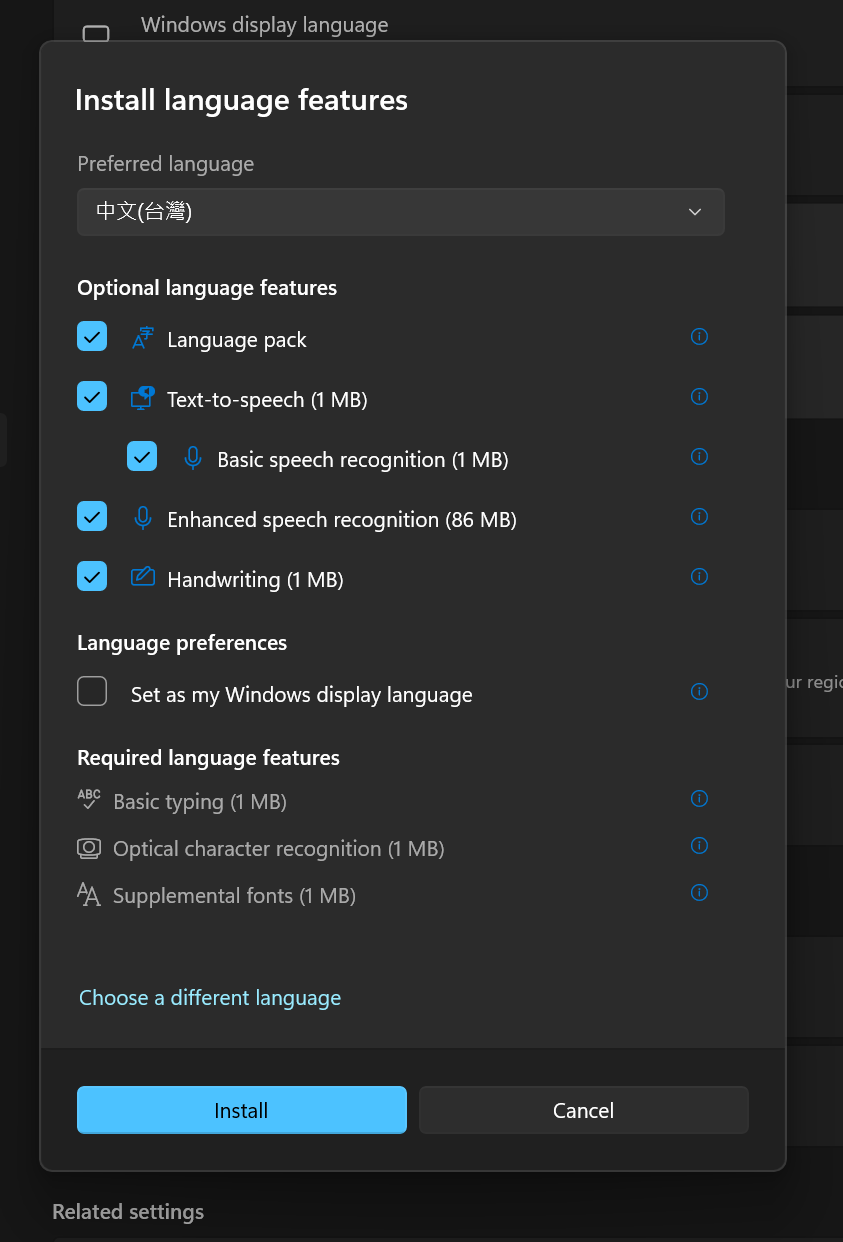
Microsoft Bopomofo belongs to the Traditional Chinese language pack. If you installed only Chinese (Simplified, China), you will usually see Microsoft Pinyin and Microsoft Wubi instead.
Open Microsoft Bopomofo -> Keyboard options -> Key assignment. Windows supports several layouts:
| Layout | Input style | Choose it when... |
|---|---|---|
| Standard | Taiwan's common physical Zhuyin layout | You want to type ㄅㄆㄇㄈ directly |
| HanYu Pinyin | Hanyu Pinyin with roman letters | You know Pinyin but need Traditional output |
| Eten | Alternative Zhuyin key arrangement | You already learned the Eten layout |
| Taiwan Pinyin | Taiwan romanization | You specifically use Taiwan Pinyin spellings |
Most Zhuyin learners should choose Standard. If you actually want romanized Pinyin, use HanYu Pinyin and follow the Traditional Chinese Pinyin on Windows 11 guide.
If you chose Standard, the next step is learning where the Zhuyin symbols and tone marks sit on a physical keyboard. The practical Zhuyin keyboard layout guide has the complete visual key map, tone keys, worked examples, and short drills.
Keep this page for Windows settings and troubleshooting; use that guide to learn and practice the layout itself.
Microsoft Bopomofo works syllable by syllable:
Type complete words or phrases before converting when possible. More context helps the IME offer better candidates than converting one character at a time.
If you do not yet know which physical keys produce each symbol or tone, follow the examples in the Zhuyin keyboard layout guide first.
| Key | Action |
|---|---|
| Enter | Select the focused candidate |
| Number | Select the corresponding numbered candidate |
| Down arrow | Enter the candidate window |
| Up/Down arrows | Move between candidates |
| Space | Move to the next candidate page |
| Tab or Right arrow | Expand candidates to table view |
| Shift + number | Select an associated phrase when that feature is enabled |
You can enable associated phrase suggestions in Microsoft Bopomofo settings -> General -> Prompt associated phrases of the input characters.
| Shortcut | Action |
|---|---|
| Win + Space | Switch between installed input methods |
| Shift | Switch between Chinese and English mode |
| Shift + Space | Switch between full-width and half-width characters |
| Ctrl + Alt + comma | Open the symbol keyboard in Chinese mode |
Backquote + U + Unicode + Space |
Enter a character by Unicode code point |
For example, Microsoft documents Backquote + U + 4e00 + Space as a way to enter 一.
Install Chinese (Traditional, Taiwan), then open its Language options and add Microsoft Bopomofo under Keyboards. It will not normally appear under the Simplified Chinese language pack.
Press Shift once to switch the IME from English mode to Chinese mode. Confirm that the taskbar shows Microsoft Bopomofo as the active input method.
Open Keyboard options -> Key assignment and confirm that the selected layout matches what you learned. Standard, Eten, HanYu Pinyin, and Taiwan Pinyin use different key mappings.
Finish the syllable and tone, then confirm you are in Chinese mode. If a key sequence is invalid, the IME may treat it as alphanumeric input when Automatically change key sequence in Chinese mode to Alphanumeric characters is enabled.
Microsoft Bopomofo includes a compatibility option under Settings -> General -> Use previous version of Microsoft Bopomofo. Use it only when the current IME has a specific compatibility problem; otherwise stay on the current version.
Keep Microsoft Bopomofo installed, but change Key assignment to HanYu Pinyin. The Traditional Chinese Pinyin guide explains that setup and its tone-number input.
After setup, practice common vocabulary before moving to long passages. Start with HSK 1 Traditional Chinese practice with Zhuyin hints.
If you need to learn the keys first, work through the Zhuyin layout and typing exercises. The goal is to make three actions automatic: finding the Bopomofo keys, entering tones, and choosing candidates. Once those steps feel comfortable, move into Traditional Chinese newspaper practice for longer sentences.
For other Windows input methods, including Microsoft Pinyin, Changjie, Quick, and Wubi, read the complete Windows Chinese keyboard guide.