Guide
Ready to try your Chinese keyboard?
Start with a short HSK 1 typing session. No signup is required.
Practice HSK 1 vocabularymacOS has built-in Chinese and Cantonese input support. You do not need to install a third-party keyboard to start typing Chinese on your Mac.
The main decision is not "how do I install Chinese?" It is "which input method should I add?" This guide helps you choose the right one, add it in current macOS settings, switch to it, and start practicing with real Chinese text.
Apple's current path is System Settings -> Keyboard -> Text Input -> Edit. Its Chinese input source guide also confirms that Simplified Chinese, Traditional Chinese, Cantonese, and handwriting sources can be added from this panel.
| If you are... | Choose this input method | Best script |
|---|---|---|
| Learning Mandarin or starting from scratch | Pinyin | Simplified or Traditional |
| Typing for mainland China or Singapore | Pinyin - Simplified | Simplified |
| Typing for Taiwan | Zhuyin - Traditional or Pinyin - Traditional | Traditional |
| Typing for Hong Kong | Cangjie - Traditional or Sucheng - Traditional | Traditional |
| Learning shape-based Simplified input | Wubi - Simplified | Simplified |
| Looking up characters you cannot pronounce | Stroke or Handwriting | Simplified, Traditional, or Cantonese |
For most beginners, start with Pinyin unless you have a Taiwan or Hong Kong-specific reason not to. If you learned ㄅㄆㄇㄈ in Taiwan, choose Zhuyin. If you are in Hong Kong or want a shape-based Traditional Chinese method, choose Cangjie or Sucheng.
TypeChinese works with whatever macOS input source you choose. The site itself can show Pinyin, Zhuyin, or Cangjie hints while you practice, so you can match the hints to the input method you are learning.
On current macOS versions:
This opens the Input Sources panel where you can add, remove, and reorder keyboards.
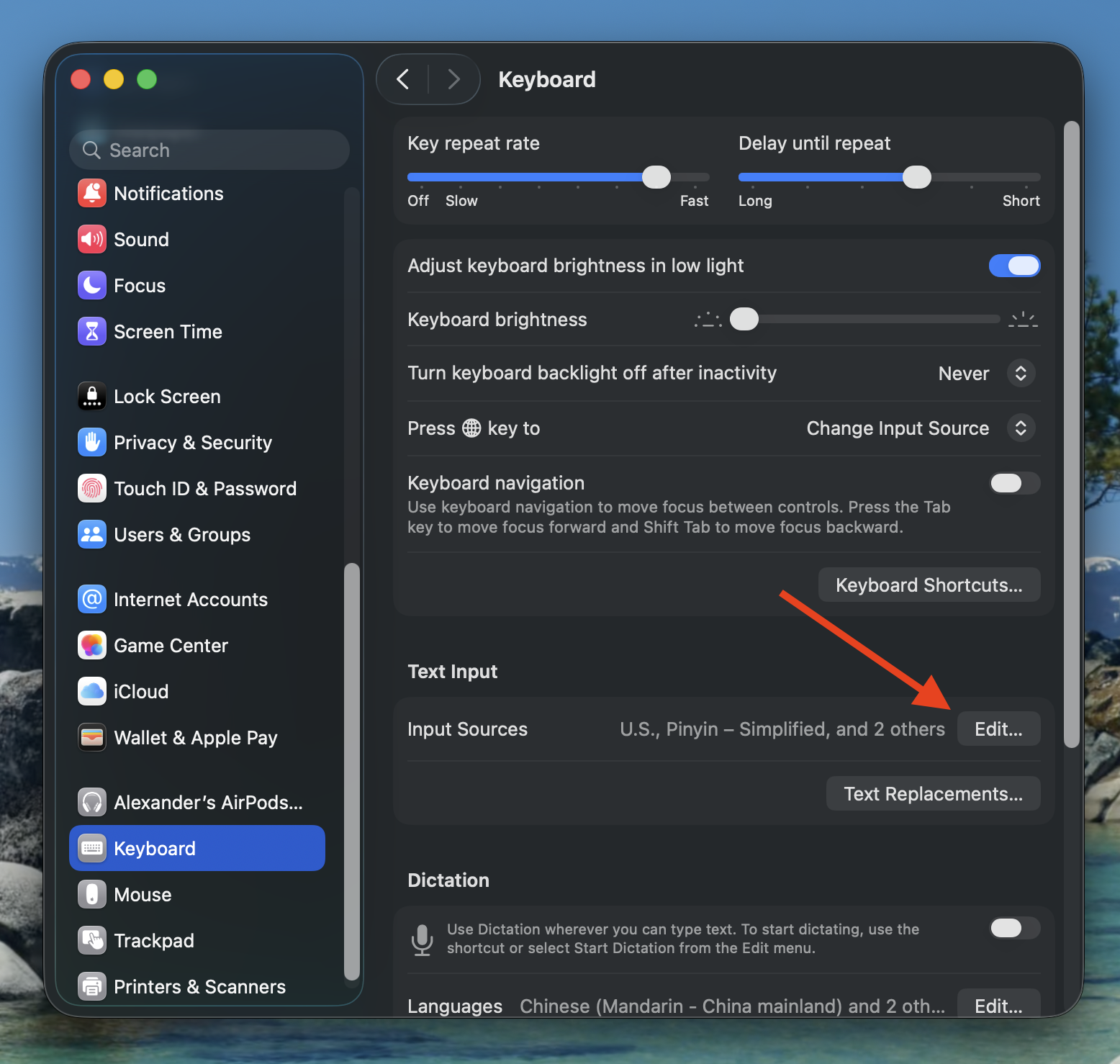
Open Keyboard settings and use Text Input -> Edit to manage input sources.
On older macOS versions, the path may be System Preferences -> Keyboard -> Input Sources, then the + button.
In the Input Sources panel:
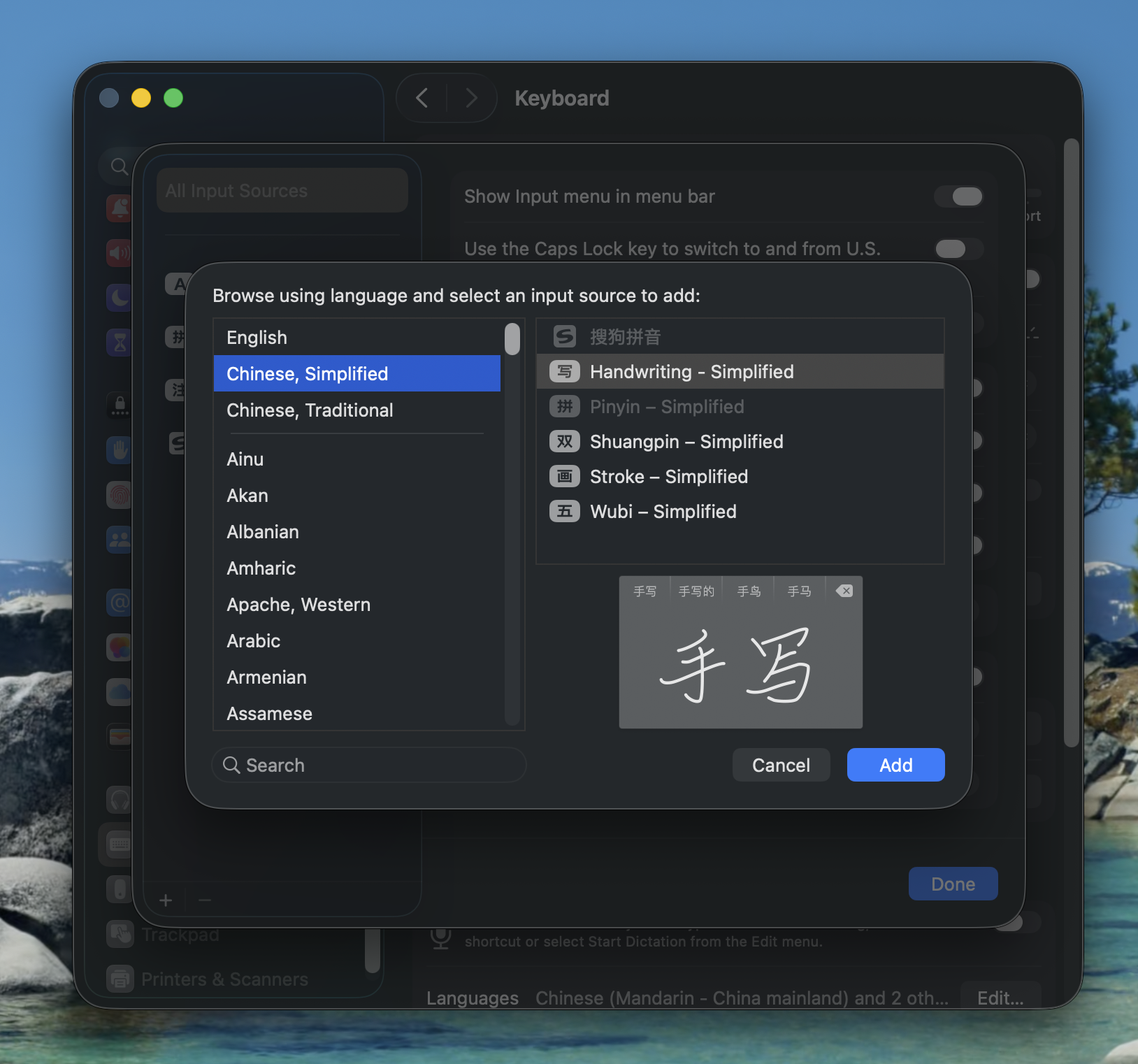
The Add Input Source dialog lets you choose Chinese, Traditional Chinese, or Cantonese input sources.
Good first choices:
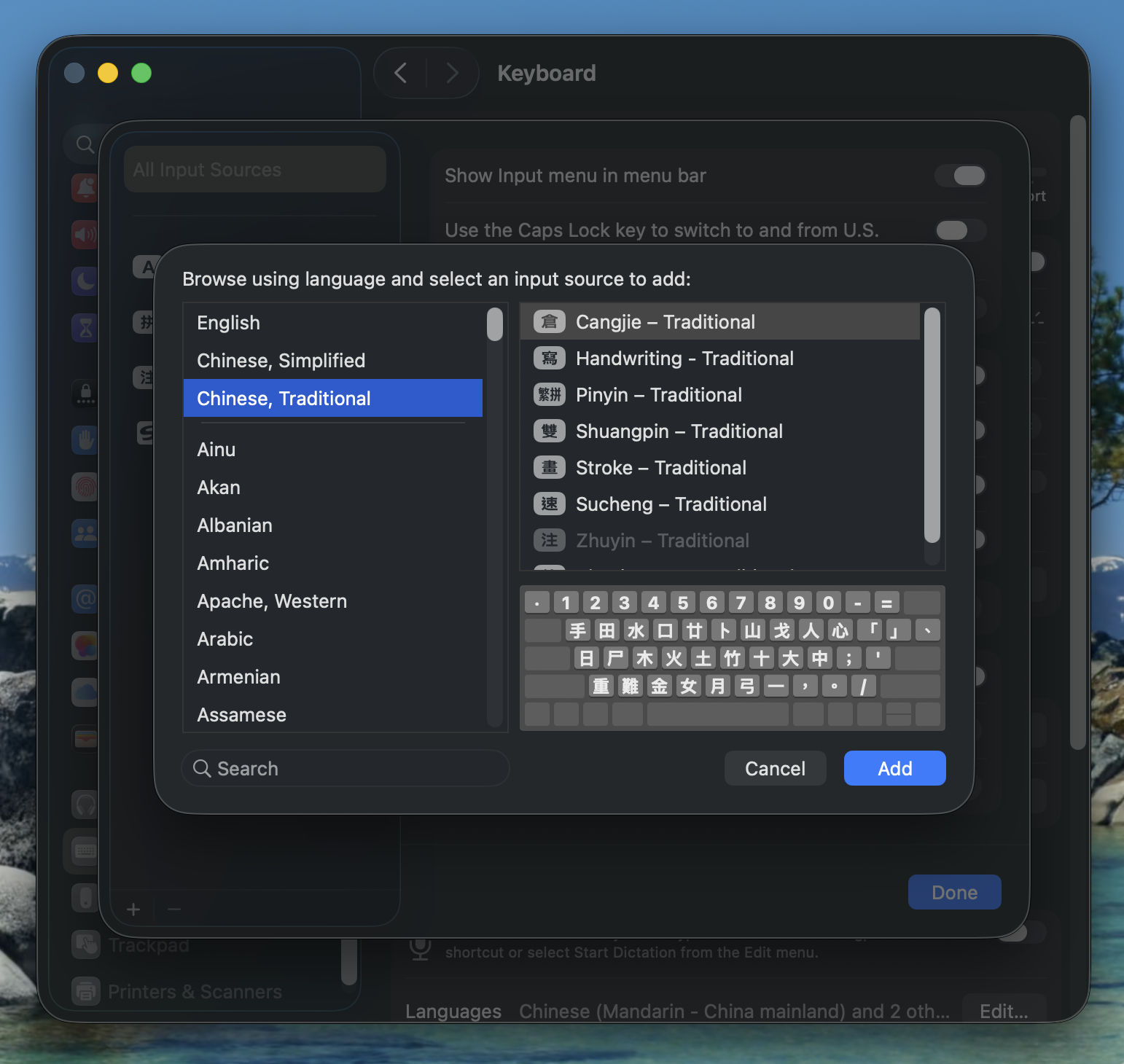
Pick the input source that matches the way you plan to type: Pinyin, Zhuyin, Cangjie, Sucheng, Wubi, or another method.
You can add more than one. For example, you might add both Pinyin - Simplified and Cangjie - Traditional if you work with both character sets.
After adding a Chinese input source, switch to it when you want to type Chinese.
Common options:
If a shortcut does not work, open System Settings -> Keyboard and check how macOS is configured for the Fn/Globe key and input-source shortcuts.
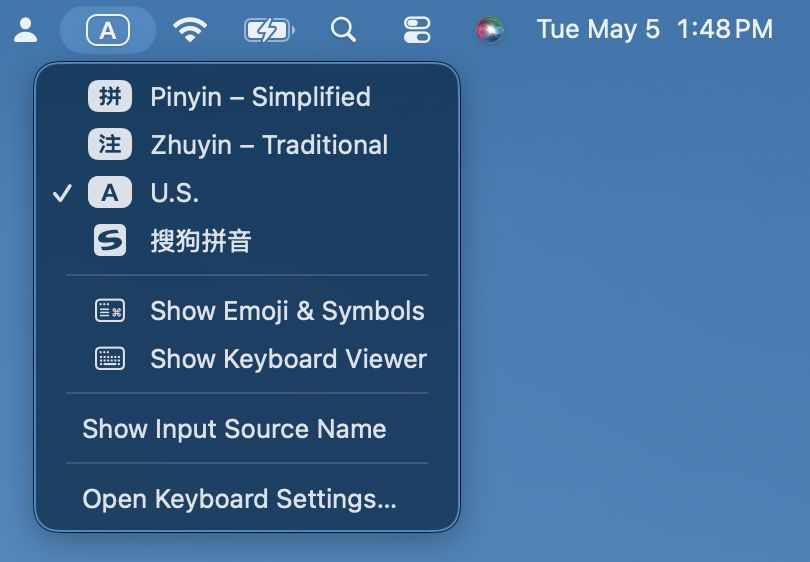
The menu bar input menu is the clearest way to confirm which Chinese input source is currently active.
nihao.Pinyin can output Simplified or Traditional characters depending on the input source. For example, zhongguo may produce 中国 or 中國 depending on whether you chose Pinyin - Simplified or Pinyin - Traditional.
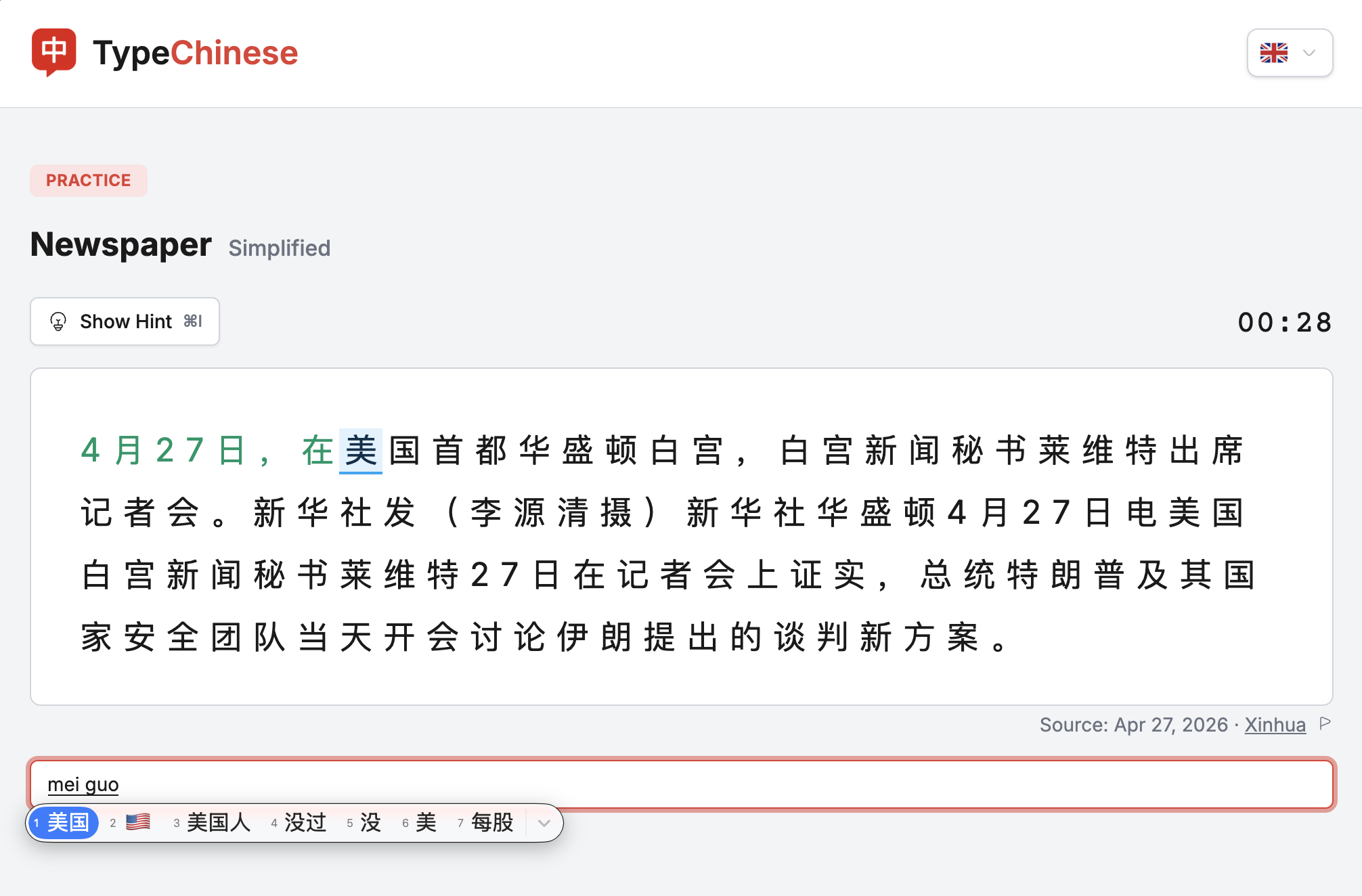
For phonetic input methods like Pinyin and Zhuyin, you type the pronunciation first, then choose the intended characters from the candidate window.
Zhuyin is the standard phonetic input path for many Taiwan learners and native users.
Cangjie has a steeper learning curve than Pinyin, but it is useful when you know the shape of a character but not its pronunciation. Sucheng is a lighter Cangjie-like option, often using fewer codes with more candidate selection.
Use Wubi - Simplified if you specifically want a shape-based method for Simplified Chinese. It is powerful for experienced users, but most beginners should start with Pinyin first.
After adding an input source, switch to it, open the input menu in the menu bar, and choose Open [input source] Settings.
Settings worth knowing:
You do not need to change these on day one. Add the input source first, type for a few minutes, then tune settings only if something feels awkward.
Setting up Chinese input is the first step. Getting comfortable requires repeated practice with real text.
TypeChinese works with the input source you just added on your Mac. If you type with Pinyin, Zhuyin, or Cangjie, TypeChinese can show matching hints above each character so you can keep moving when you get stuck.
Recommended starting points:
Try one short session after setup. The goal is not speed on day one. The goal is to make switching input sources and selecting candidates feel normal.